
Sessions and modes
A workspace is a folder on your computer that CLIO treats as one body of work. A session is one conversation with an agent inside a workspace. Files the agent reads and creates, and the evidence recorded for them, stay attached to the session that produced them.
Start a session
Section titled “Start a session”-
Choose the plus button at the top of the sidebar, labeled “Create or import”, then choose New session.
-
Give the session a name, choose its workspace, and choose an Agent blueprint. The default, “Standard agent”, is a general-purpose agent with file and shell tools. A blueprint adds domain experts, tools, and instructions to the session.
-
Choose Create session, then type your question in the composer.
To register a folder as a workspace, choose New workspace from the same menu. The same menu also imports a session and opens archived sessions.
The agent blueprint is part of the session, so you can run different kinds of work side by side by starting sessions with different blueprints. To change what new sessions start with, open Settings and choose New session defaults. See Agent blueprints for what a blueprint contains and how to install more.
The composer controls
Section titled “The composer controls”Below the message box, a row of controls sets how the next message is handled.
| Control | What it does |
|---|---|
| Model | Shows the provider and model in use, for example “Codex / Luna”. Choose it to change the model for this session. |
| Reasoning effort | Shown only when the selected model offers thinking levels, such as “Medium”. |
| Execution mode | Execute, Plan, or Deep research. |
| Confirmation policy | Ask first, Workspace edits, AI review, SPOTTER review, or Bypass checks. |
To set up a model, see Connect a model.
Execution mode
Section titled “Execution mode”| Mode | What the interface says it does |
|---|---|
| Execute | Act on the request and make supported changes. |
| Plan | Develop a concrete approach before changing anything. |
| Deep research | Investigate broadly through specialists before proposing changes. |
In Plan and Deep research, tools that write are refused. Plan mode may still write plan files in Markdown. Execute is the default.
Confirmation policy
Section titled “Confirmation policy”| Policy | What the interface says it does |
|---|---|
| Ask first | Pause before protected actions. |
| Workspace edits | Make workspace edits without a separate confirmation. |
| AI review | Continue when automated review accepts the action. |
| SPOTTER review | Require the configured SPOTTER policy. |
| Bypass checks | Do not stop for supported action checks. |
“Ask first” is the cautious choice. What counts as a protected action, and the answers you can give when CLIO asks, are covered in Permissions and sandbox.
When the agent asks you something
Section titled “When the agent asks you something”An agent can pause and ask you a question instead of guessing. A banner above the composer reads “response needed” while a question is waiting. A question can be:
- Free text, when the agent needs a detail only you know.
- A choice from a list.
- A confirmation, before something that you may want to review.
- An interactive view, such as a map where you pick a station, or a form.
Answer it, or choose Cancel question to dismiss it. Permission requests appear in the same place. The agent waits for you, and nothing continues until you respond.
If a child agent asks, the question is attributed to that child so you can see who is asking.
Follow a run
Section titled “Follow a run”While the agent works, the transcript shows its steps as they happen: tool calls with their arguments and results, and the expert agents it has called on. Open the observability panel with the panel button at the top right of the session. It has four tabs:
- Evidence: files read, changed files, and artifacts.
- Timeline: every step in order.
- Gantt: the main agent, child agents, and tool calls over time, with a “Background work” section for activity that continues outside the main thread.
- Context: what is in the agent’s working context.
The status bar at the bottom of the window shows whether anything is running. See Memory and evidence for how to read each tab.
Expert agents run as child sessions. Open one to see its own transcript, and use the back arrow in its header, labeled “Return to parent conversation”, to return.
Use + → Attach to add files, folders, or connected data. Use + → Reference, or type @, to point to existing files and evidence. Inspect the selected items before sending; downloads and links have different rules for edits.
Steer or stop a run
Section titled “Steer or stop a run”For alternative answers, see Best of N and refinement. For a report that connects several outputs in the side panel, see Dashboards. Both guides identify development-build behavior.
While the agent is working, a Steer button appears next to the composer. Type a message and choose it, and the message joins the active turn at the next safe boundary instead of waiting for it to finish.
During a run the send button is labeled Stop. Choose it to cancel the current work.
The session header also has actions to fork a session, compact its history, share it, and undo.
Export a session for someone else
Section titled “Export a session for someone else”For a scope comparison, the development menu’s named checkboxes, and where saved files appear, see Exports and downloads.
Open the session’s sidebar menu and choose Export session, then Download transcript HTML. The default is one Transcript HTML file with everything needed to read the conversation: tool inputs and outputs, recorded intermediate steps, loaded skill instructions, traces, child-agent work and supported saved views. Styles, scripts and captured images are embedded; there are no companion skill or data files.
View the short GIF (1.1 MB). The video above provides playback controls and a full-screen view.
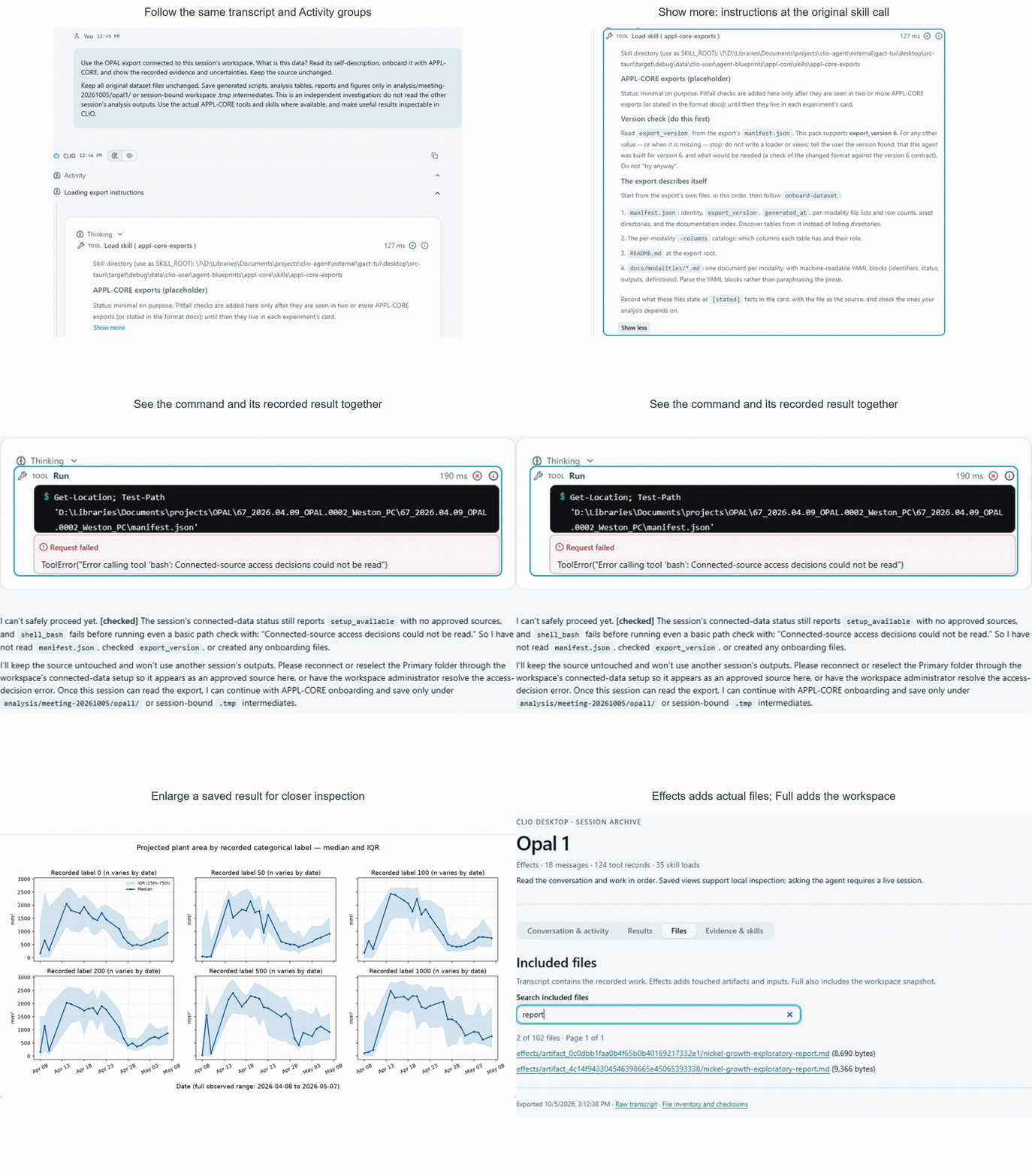
The review uses the same conversation, Activity groups and tool controls as CLIO. Open Activity to follow the recorded work; choose Full activity view to inspect every retained step. A skill’s Show more opens its saved instructions at the call that loaded them. Commands show their inputs and results together, including recorded failures. Nothing is rerun when you inspect it.
The two toggles add files to that same review:
| Export | What your recipient receives |
|---|---|
| Transcript (default) | One self-contained HTML file. Read the full recorded work, expand skill instructions in Activity, and inspect supported saved views. |
| Effects | A ZIP with the visual transcript plus skill files, full traces, the session’s referenced and produced artifacts, and recorded input files. Follow file links to inspect the actual saved inputs and outputs. Editable documents and their previews remain separate files. |
| Full | Effects plus the registered workspace folders as they exist when you export. This can be much larger. |
Full includes Effects automatically. Effects follows this session and its child agents; it does not gather every output from other sessions in the same workspace. Full includes the workspace’s other files because that is the scope you selected.
Send the Transcript HTML directly; your recipient opens that one file in a browser. For Effects or Full, send the ZIP; your recipient extracts it and opens index.html, keeping the folder together for file links. Neither requires CLIO to be installed or running.
| In the review | What you can do |
|---|---|
| Conversation & activity | Follow questions, answers, intermediate steps, tool inputs and results in their original positions. Use the same Activity controls, Show more and complete-result views as the live conversation. Complete saved output is embedded in Transcript; Effects and Full also include its file. |
| Results | Inspect supported saved views, filter captured tables and charts, and click an image to enlarge it. These are saved results; asking the agent to change them requires a live session. |
| Files | Search the included files. Effects and Full provide the editable outputs and their saved previews as separate files. |
| Evidence & skills | Use a supplementary index of loaded skills and exact tool records, or check recording coverage. Skill instructions remain available at their original calls in the conversation. Raw records are here when you need them. |
The HTML contains its viewer resources, skill instructions and a readable document. If your browser blocks scripts or cannot start the interactive views, the conversation, activity, skills and captured images remain readable.
Check Evidence & skills for recording coverage, excluded files and uncaptured visual dependencies. Missing historical skill bodies or artifact versions are reported explicitly. CLIO preserves what was recorded; it does not replace an old skill with today’s installed copy. External media and live services are available only when their required content was captured.
Effects and Full also include transcript.json, readable traces/ and skills/ folders, and a file manifest with checksums. Full records a current workspace snapshot for inspecting and reproducing the work; it does not recreate external services or the installed execution environment. Importing a raw transcript into CLIO restores message history and context references; it does not automatically restore the workspace or execute recorded actions.