
Connect a data source
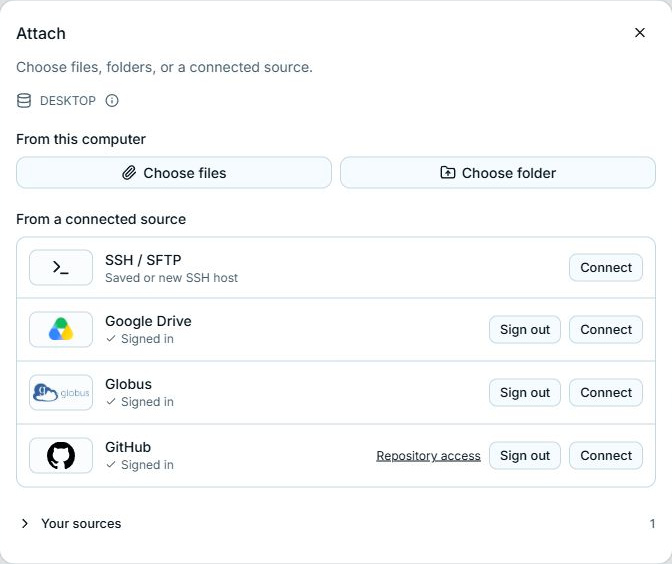
Open + → Attach to connect a folder, repository, or collection. Sign in connects your account. Connect chooses the particular data you want to use. These are separate actions.
Open Settings → Data sources to sign in to or out of provider accounts independently of a conversation. These accounts are shared across workspaces on this CLIO. Signing in does not attach a dataset or grant the agent access to one.
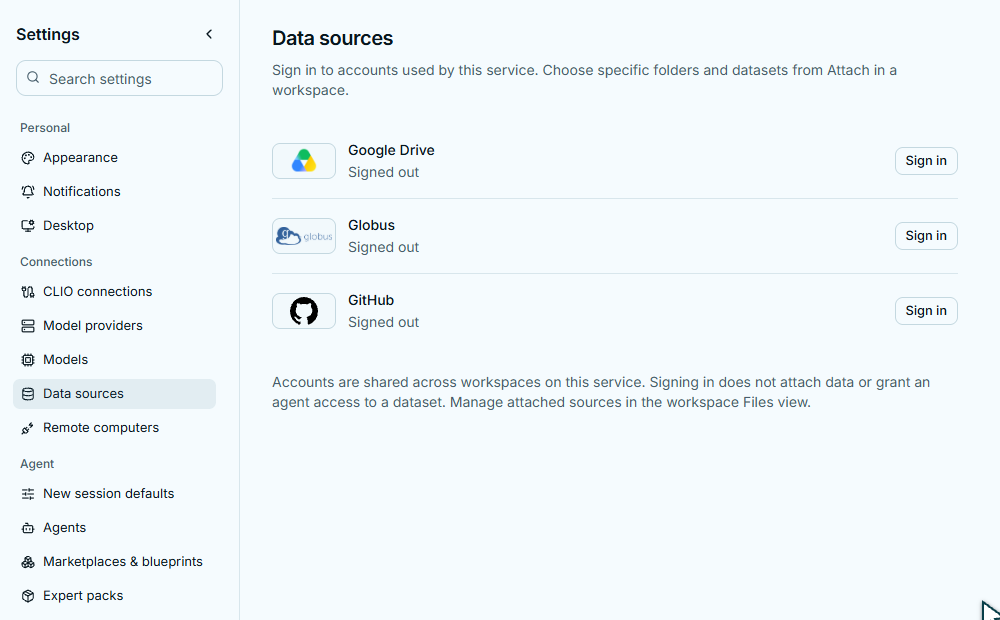
To connect a dataset, return to a workspace and use + → Attach. Manage that workspace’s saved sources under Files → Sources. Enlarge account settings.
Pick a location
Section titled “Pick a location”| Source | What to provide |
|---|---|
| Google Drive | A folder link. Sign in for private data. |
| GitHub | A repository link, then a branch, tag, or commit. Sign in for private repositories you are allowed to access. |
| Globus | The collection and folder you want to use. Sign in when access requires it. |
| SSH / SFTP | A saved host or a new connection, then a folder on that machine. |
| Folder on the CLIO machine | A path on the machine running CLIO. This option is useful when that machine differs from the computer running the interface. |
For files on the computer in front of you, use Choose files or Choose folder. Public sources supported by a provider can be connected without signing in; private access requires the appropriate account and permission.
Sign in, then choose the data
Section titled “Sign in, then choose the data”Choose Sign in under the provider and finish the browser steps. Return to CLIO and check for Signed in. You can then connect more sources using that account.
GitHub’s Repository access link opens the app’s repository selection on GitHub. Signing in alone does not grant access to every private repository. For edits, choose a writable branch; tags and specific commits identify fixed revisions.
After connecting, inspect the source’s files. Connecting alone does not download everything or give the agent a new message. Choose how to add the files next.
What is shared?
Section titled “What is shared?”Saved sources belong to a workspace. Connected accounts are reusable across workspaces for the same user on that CLIO. A separate CLIO machine may need its own sign-in.
Signing out is under the provider. Removing one saved source does not sign out the account. See Manage sources.
Ask CLIO to connect a source
Section titled “Ask CLIO to connect a source”You can say, “My next dataset is in Google Drive. Help me sign in,” or provide a repository or folder link and ask CLIO to connect it. When sign-in is needed, the answer includes a Sign in button. Choose it to open the private account dialog, then finish the browser steps. Return to the conversation and tell CLIO when you are ready.
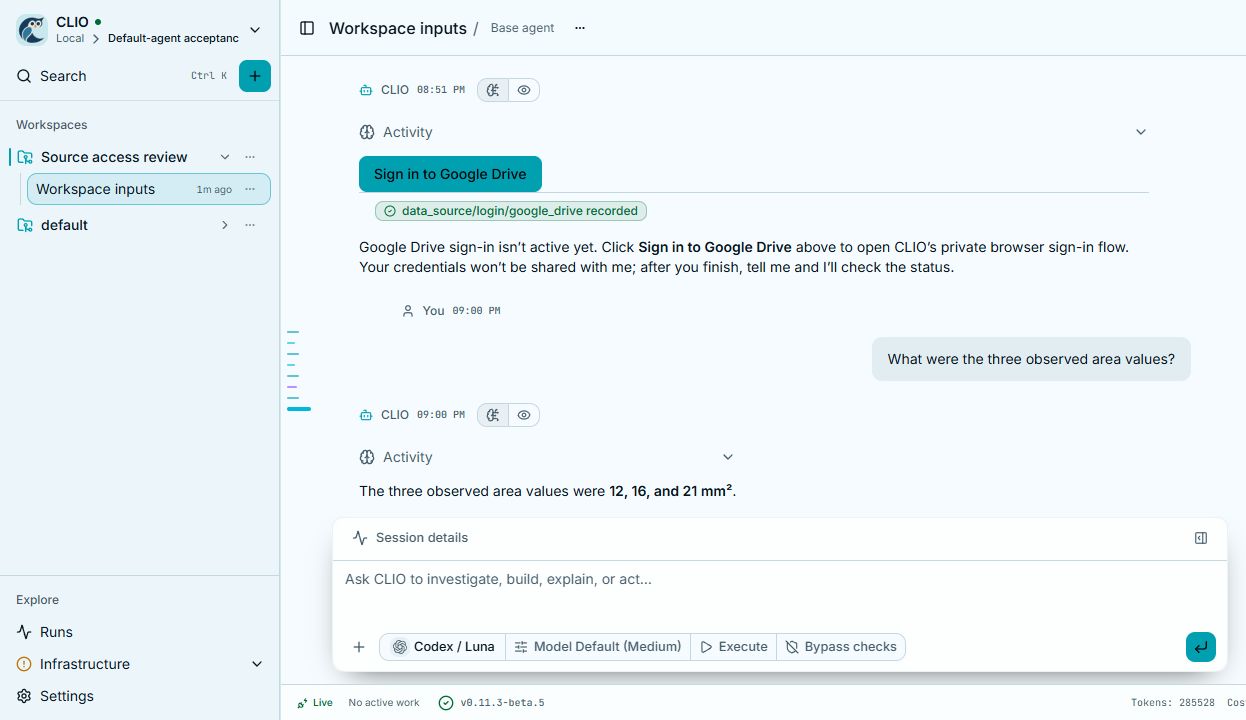
The button stays with the answer. It opens account setup; the click itself does not mean the account is signed in. Enlarge screenshot.
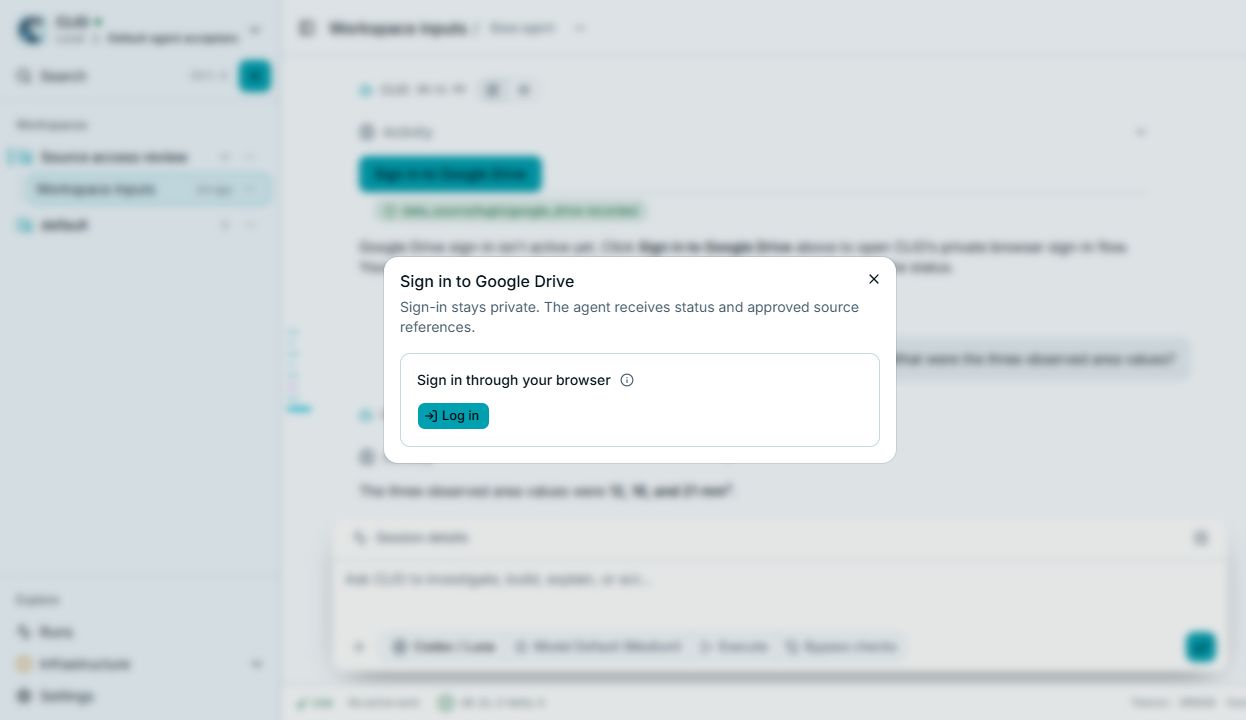
Your credentials stay in the private sign-in flow. The agent receives account status and approved source references. Enlarge screenshot.
Attaching a new source goes through the session’s confirmation policy. Bypass checks can approve that attachment automatically. Read-only access is the default; choose a working copy when changes should be reviewed before publication. See Downloads and links for what each access mode means.
For GitHub reads through CLIO’s managed GitHub CLI, CLIO uses its current signed-in account and the approved repository or folder. You do not need a second CLI login. GitHub’s app permissions still determine which repositories it can access, and signing out stops subsequent private reads. Source edits keep their existing review and publication rules.
Files already in the workspace
Section titled “Files already in the workspace”Workspace folders are already available inputs. CLIO checks them before asking you to connect another source. An empty list of remote sources does not mean your workspace is empty. Its source inventory shows workspace folders, attached sources, and provider account status separately, so “signed in” and “dataset connected” remain distinct.