
Files, references, and sources
Give CLIO the material you want it to work with, then say what you want done. Attach brings in files, folders, or connected data. Reference points to material already in the workspace.
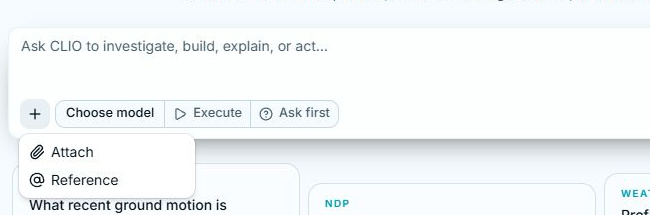
Choose your next step
Section titled “Choose your next step”| I want to… | Use | What changes |
|---|---|---|
| Add a file or folder from my computer | Attach | CLIO prepares it in the workspace and adds it to your draft. |
| Ask about a file, result, or earlier conversation | @ references | A reference is added to the message; no second upload is needed. |
| Use Drive, GitHub, Globus, or an SSH folder | Connect a source | CLIO saves a source for this workspace. You then choose how to use its files. |
| Decide whether edits affect the originals | Download or link | Your choice sets where the files live and where changes can go. |
| Reuse, unlink, or remove a source | Manage sources | You control the connection separately from individual messages. |
A source is not a message
Section titled “A source is not a message”Saving a source makes it available in this workspace. Adding a file or folder to the composer selects it for your next request. Send delivers the message and its attached context to the agent.
You can inspect or remove an item before sending. Removing a draft reference is different from deleting a file or removing a saved source; the management guide explains each action.
The walkthroughs use a small example folder called Project notes. They show real interface states, presented as captioned screenshot walkthroughs.