
Find a decision in research notes
Suppose you remember that your team discussed calibration before comparing two sets of measurements, but you do not remember where the decision was written. This example shows how to find the note and read the surrounding context.
Open the example notebook
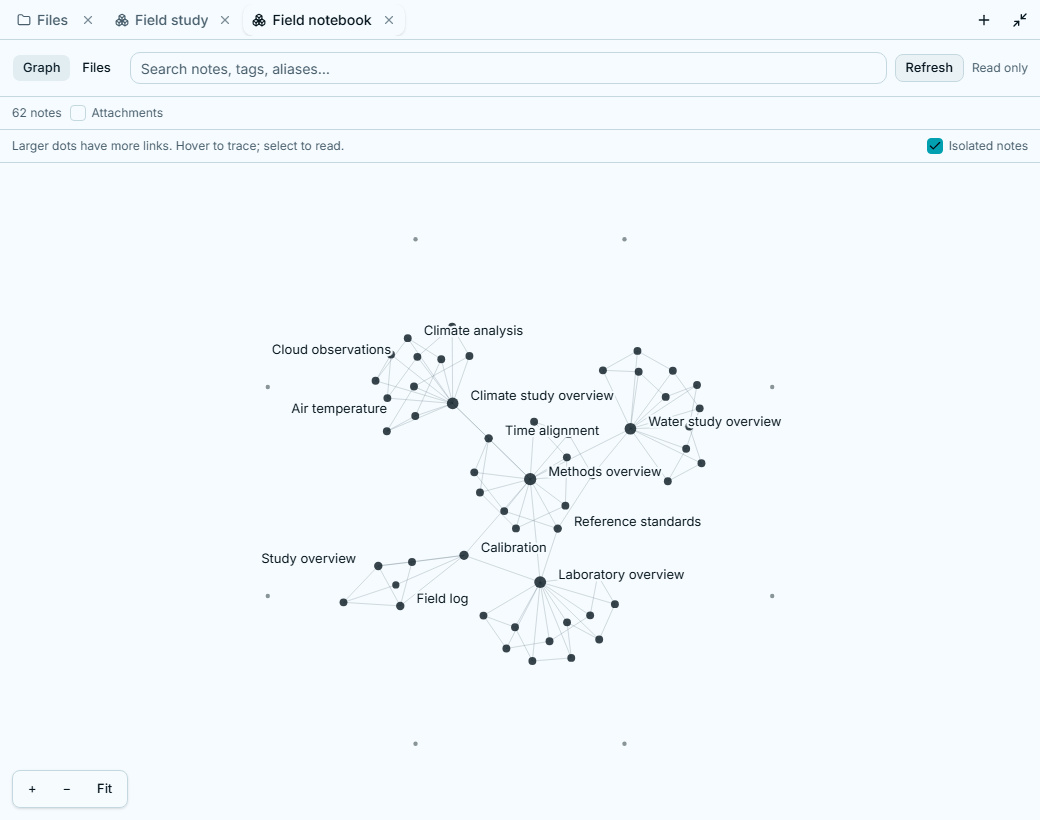
Section titled “Open the example notebook”- Download and extract the fictional Field notebook. It contains 62 linked notes and a small six-note Field study folder.
- In your workspace, choose + → Attach → Obsidian vault.
- Select Vault on this host, choose the extracted Field study folder and keep Read only. Choose Connect vault.
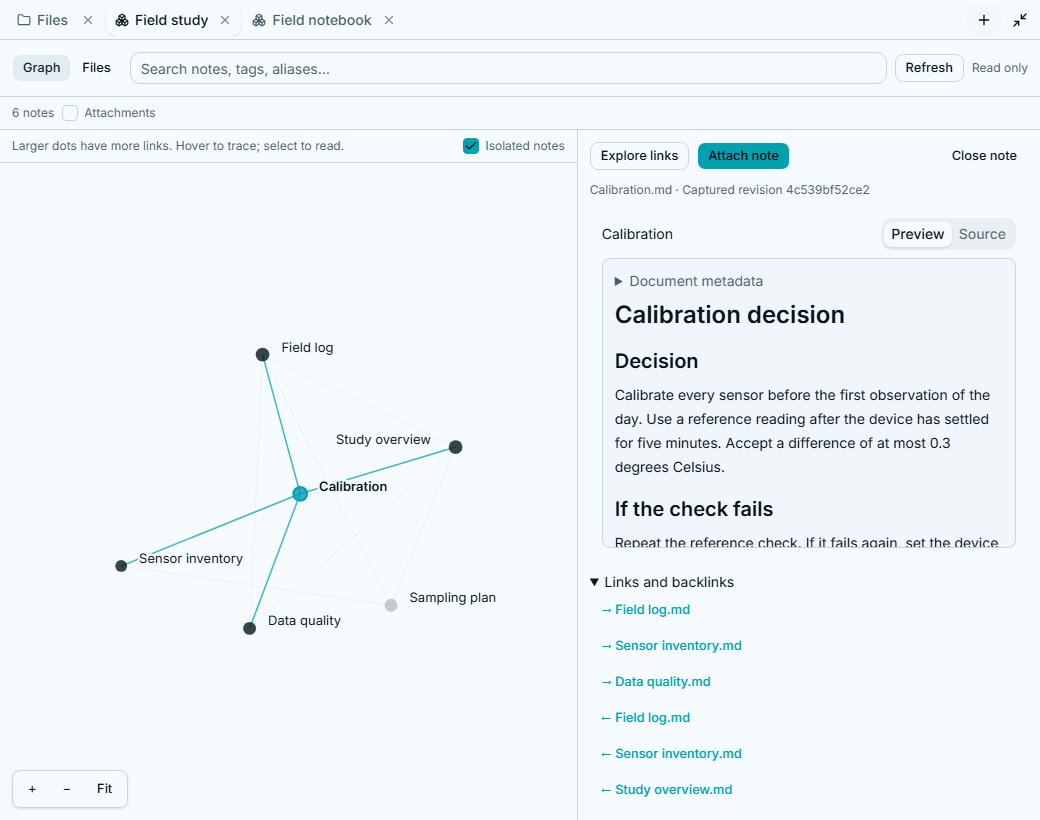
- Open the source’s graph and select the Calibration note. Read it beside the graph, then follow its links to the surrounding decisions.
Ask a grounded question
Section titled “Ask a grounded question”Choose Attach note to put the relevant note in your draft. Then ask:
What does this notebook say we must check about calibration before comparingmeasurements? Link the notes behind your answer, distinguish decisions fromopen questions, and keep the notebook unchanged.Read the linked notes before accepting the answer. If CLIO gives a conclusion without a source, ask it to identify the note and passage. An unresolved link or missing record is a reason to qualify the result, not fill in a plausible answer.
Search or broaden the context
Section titled “Search or broaden the context”Use the file list or source search when you know a phrase. Connect the whole Field notebook instead of only Field study to explore its larger set of connections. The selected folder is the access boundary; a link does not grant access to a note outside it.
Continue with Explore research notes for connection, search, reader and editing controls. For finding an earlier discussion in CLIO itself, use Search files and conversations.