
Explore research notes
Create or connect a vault as a knowledge source in CLIO. Browse a graph of its links, switch to a file list, and read notes beside the conversation. The agent gains tools to search notes, follow their relationships, and capture the material it uses in an answer.
A knowledge graph of your notes
Section titled “A knowledge graph of your notes”A knowledge source connects Markdown notes through their authored links, tags, aliases, and frontmatter. Its vault is the folder holding those notes. CLIO can create a new vault or connect an existing notes folder, then let you explore the graph, read its notes, and use it with the agent.
The Obsidian app does not need to be installed. Obsidian is a popular knowledge app that can open and review the same vault and graph. Its optional paid cross-device Sync service can also be managed by CLIO.
Create a new vault or attach an existing one
Section titled “Create a new vault or attach an existing one”In Settings → Data sources, the Obsidian row offers New vault and Connect. Choose the workspace, then continue to its connection form. The same actions are available in a workspace through + → Attach → Obsidian. New vault starts with creation; Connect starts with an existing folder and read-only access. You can change the starting point in the form:
- Create a new vault: name it and select Create vault. CLIO creates an empty vault in its managed storage on the connected host. Allow CLIO to create and edit notes is selected for a new vault; clear it to make the source read only.
- Attach an existing vault or folder: use Choose folder to select the vault or just one folder inside it. A plain Markdown folder works too; attaching it does not add configuration or rewrite its files. Existing sources start read only.
- Sync from Obsidian: sign in and let CLIO manage a dedicated synced copy, as described below. This optional path requires an Obsidian Sync subscription.
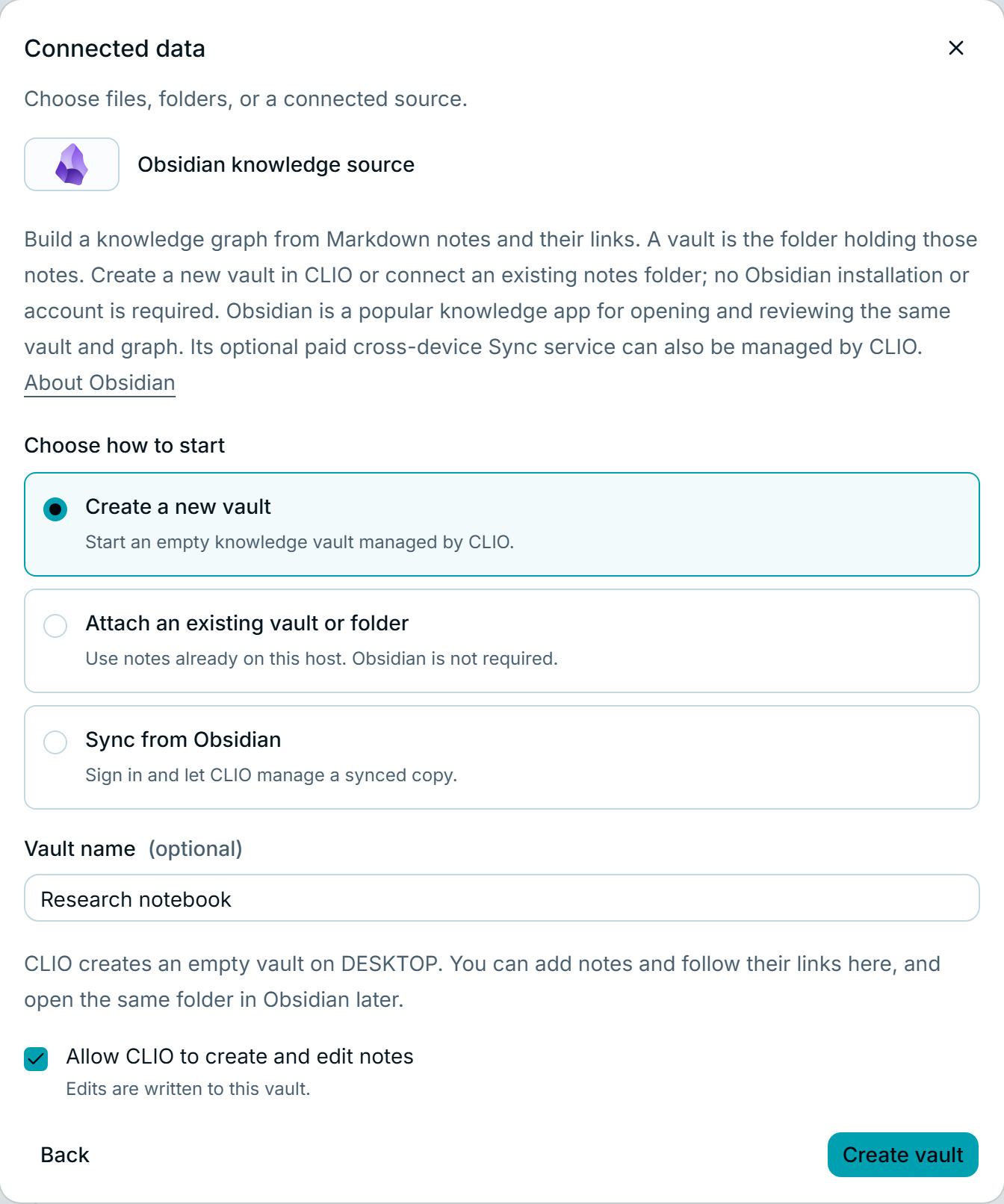
A tab named after your source opens in the workspace canvas. An empty editable vault is ready for the agent to create its first Markdown notes, including links between them. You can also add files to its folder and choose Refresh.
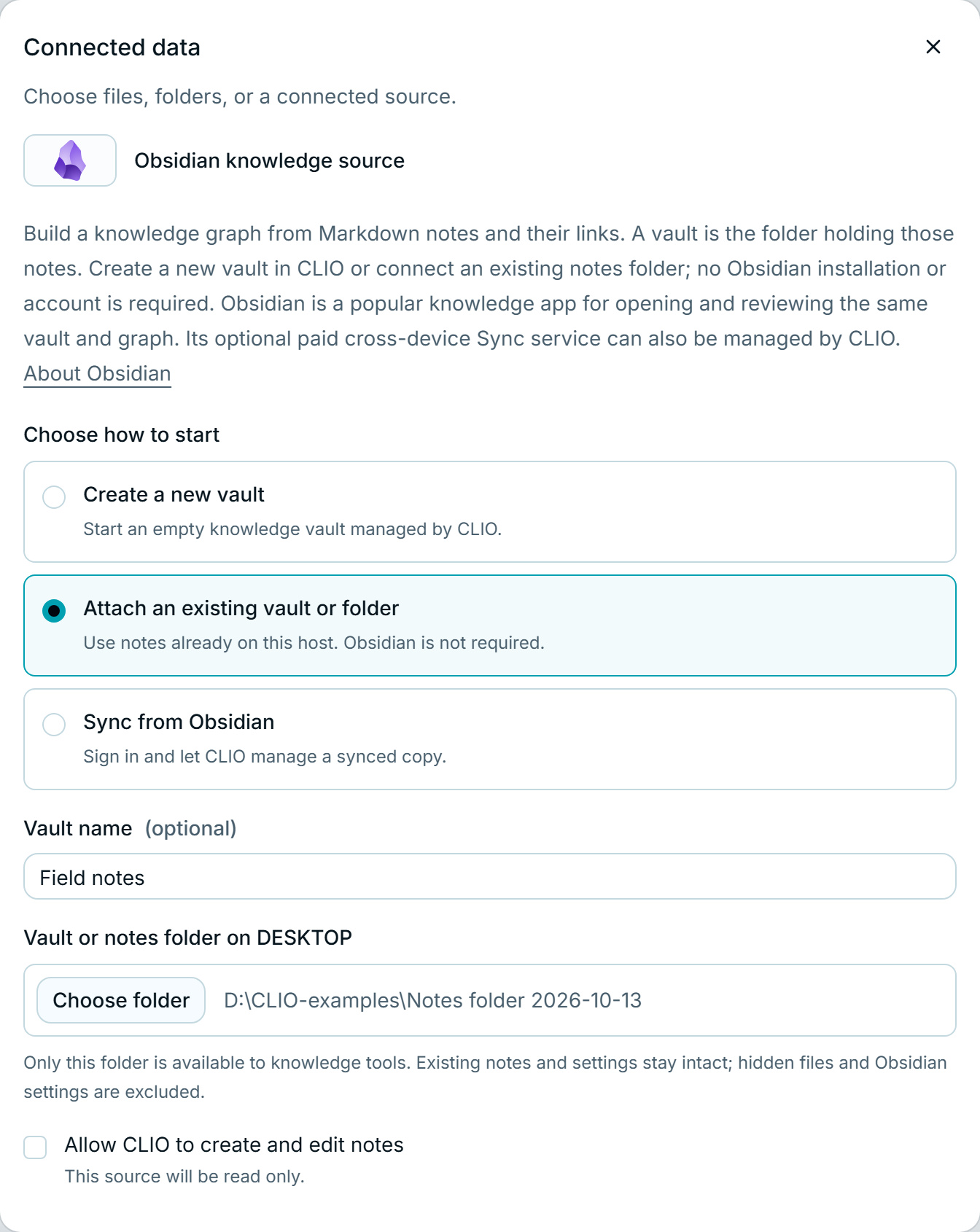
The selected folder is the boundary. Search, the graph, the reader, and note edits use only its contents. Paths are relative to that folder. A link to a note outside it does not grant access to that note; connect another source if you want to use more of the vault. Hidden folders, symlinks, and junctions are excluded.
To try the same workflow, download the example vault,
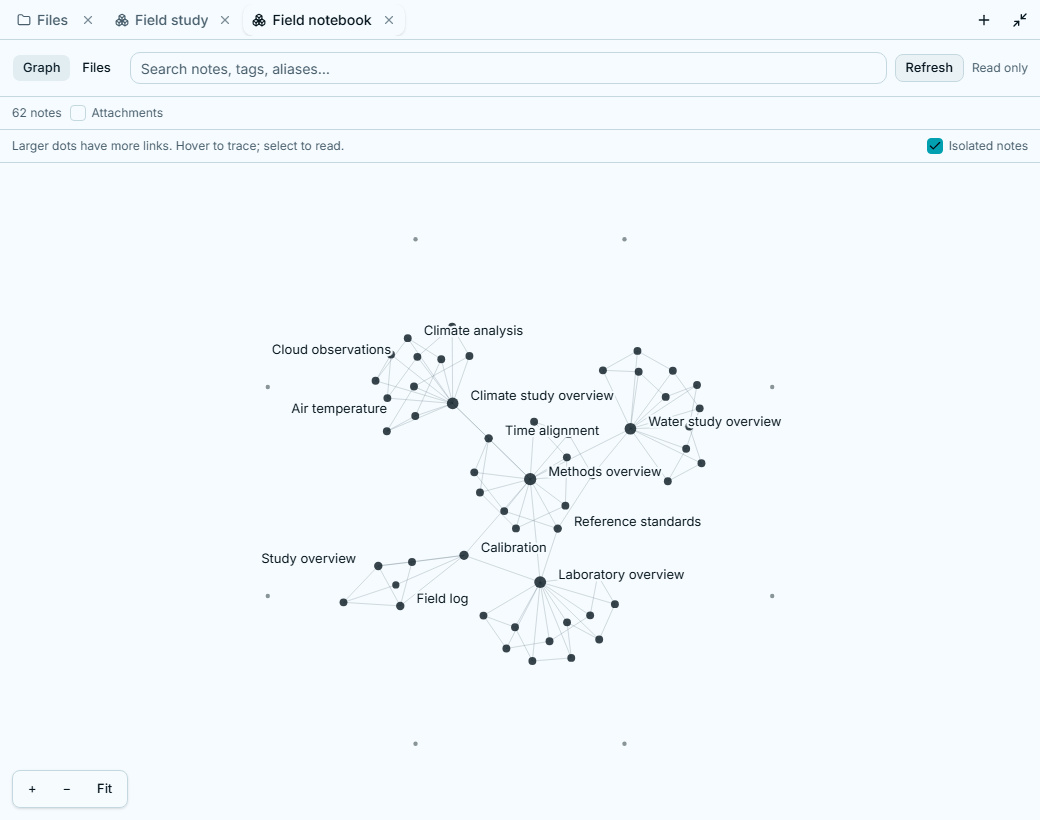
extract it, and select Field notebook for the 62-note overview, or its
Field study folder for the six-note example. The ZIP includes the minimal
.obsidian directory so the same notebook can be opened in Obsidian. CLIO also
accepts notes folders without that directory. Every note is fictional.
Explore the graph and read a note
Section titled “Explore the graph and read a note”The graph is a map of the notes’ connections. Larger dots have more linked notes; quiet lines keep the overview readable. A small set of hub labels helps identify the main groups. Hover over a dot to highlight its immediate connections and show nearby titles. Drag the background to pan, scroll or use + / − to zoom, and choose Fit to frame the map again.
Select a dot to open its note beside the graph. Its immediate connections become prominent while unrelated links fade. Opening the reader keeps the same layout; Close note restores the full canvas. Choose Explore links to narrow the map to that note’s outgoing links and backlinks. All notes returns to the selected source’s full view.
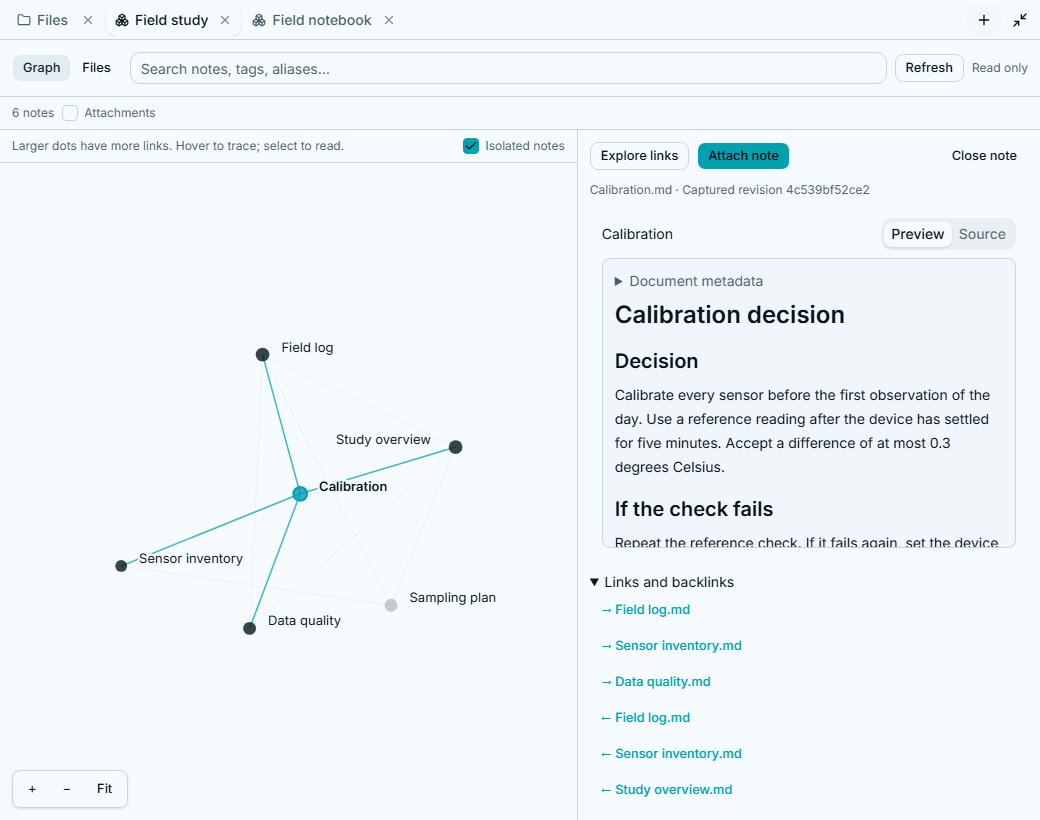
The reader shows note properties, tags, links, and backlinks. Follow a resolved link to read its target. Missing or ambiguous links stay labeled so you can see when a target cannot be chosen reliably.
The graph spans the selected source independently of the file list’s pages. Isolated notes controls unlinked notes; Attachments adds linked images and other files. Overviews are bounded to 5,000 notes and 20,000 connections, with a visible notice when a limit is reached. Search, connect a smaller folder, or explore a note’s links to narrow a large source.
Switch to files, search, and attach
Section titled “Switch to files, search, and attach”Choose Files to browse the same source as a list. Search matches note text, paths, titles, tags, aliases, and headings. Selecting a result opens the same reader used by the graph. Refresh picks up added, changed, or removed files.
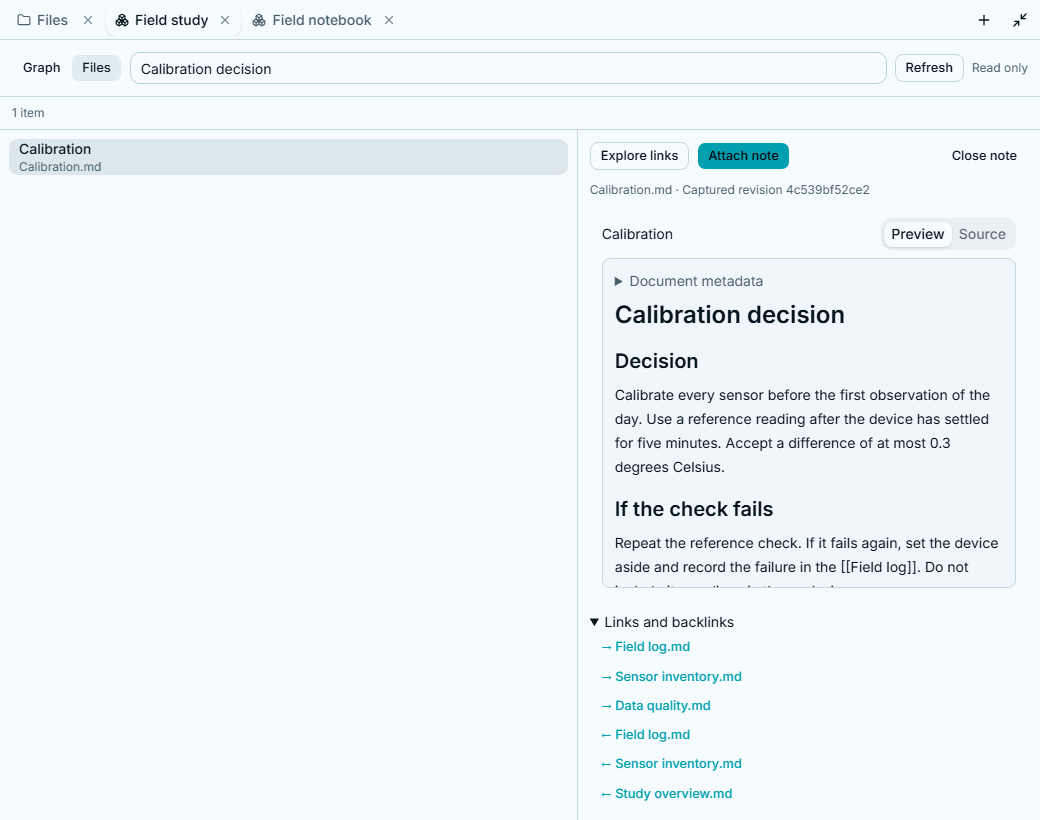
Choose Attach note to add the selected note to your draft, then write your question and send it. CLIO retains the captured bytes and their source, path, and content revision. An existing capture remains readable if the original note changes or the source is disconnected.
Ask the agent to work with the notebook
Section titled “Ask the agent to work with the notebook”You can also ask a question directly about the connected source:
Find our calibration decision, follow its links and backlinks, and explainthe checks before collecting an observation. Cite the notes you use.The knowledge tools are available only when the active workspace has a connected knowledge source with the corresponding capabilities. A regular folder connection does not automatically become a knowledge source.
| Tool | What it lets the agent do |
|---|---|
knowledge_search |
Find notes by text or metadata and inspect bounded results. |
knowledge_related |
Follow authored links, embeds, and backlinks around a note. |
knowledge_open |
Capture a chosen note or attachment as a workspace resource. The agent reads that capture with workspace_resource_read. |
knowledge_create |
Create a new Markdown note in an editable source, refusing to overwrite an existing note. |
knowledge_edit |
Replace an existing Markdown note when the source permits edits, using its captured revision to reject stale changes. |
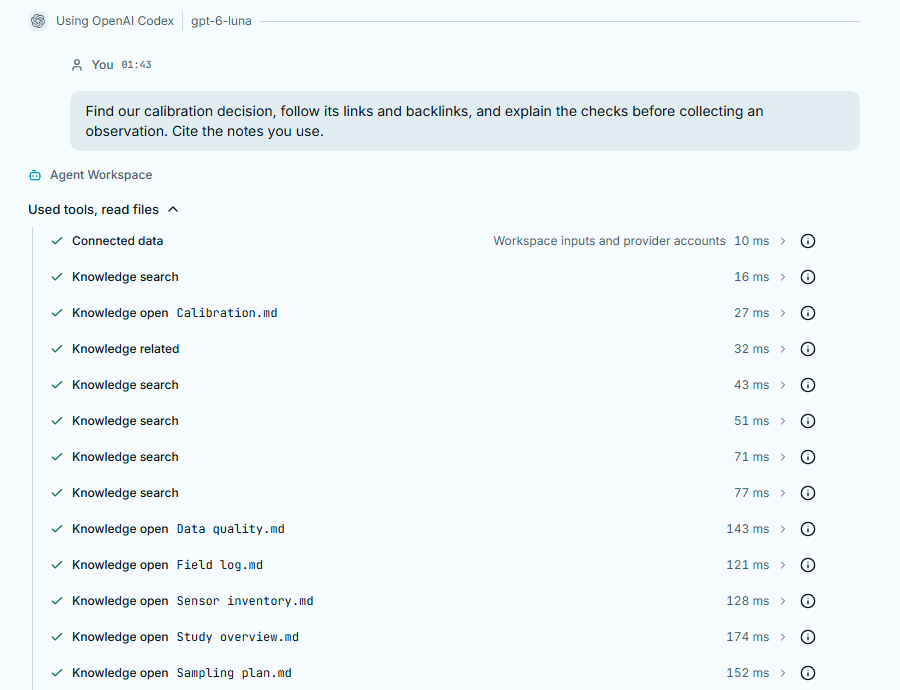
Search snippets help find a note; opening and reading its capture provides the content for the answer. Notes remain source material and cannot change the agent’s permissions or instructions.
Control edits and source access
Section titled “Control edits and source access”Existing folders and synced copies start Read only, which keeps note creation and editing unavailable. New vaults allow edits when the corresponding checkbox is selected. If you choose a working copy, edits are staged for review before publication. With direct writes, approved edits update the original note and retain its previous contents. Sync direction and agent edit permission are separate choices.
Reopen the tab with Files → Sources → your source → Open knowledge. Disconnect to stop further access through that connection, or remove it from the saved list. Original notes and captures already retained in the workspace remain. See Manage sources and Download or link for the shared source controls.
New vault and Connect in Settings
Section titled “New vault and Connect in Settings”Open Settings → Data sources to create a vault or connect a source to a workspace. Obsidian offers New vault and Connect. Google Drive, Globus, and GitHub offer separate Sign in and Connect actions. Signing in alone does not connect any data to a workspace.
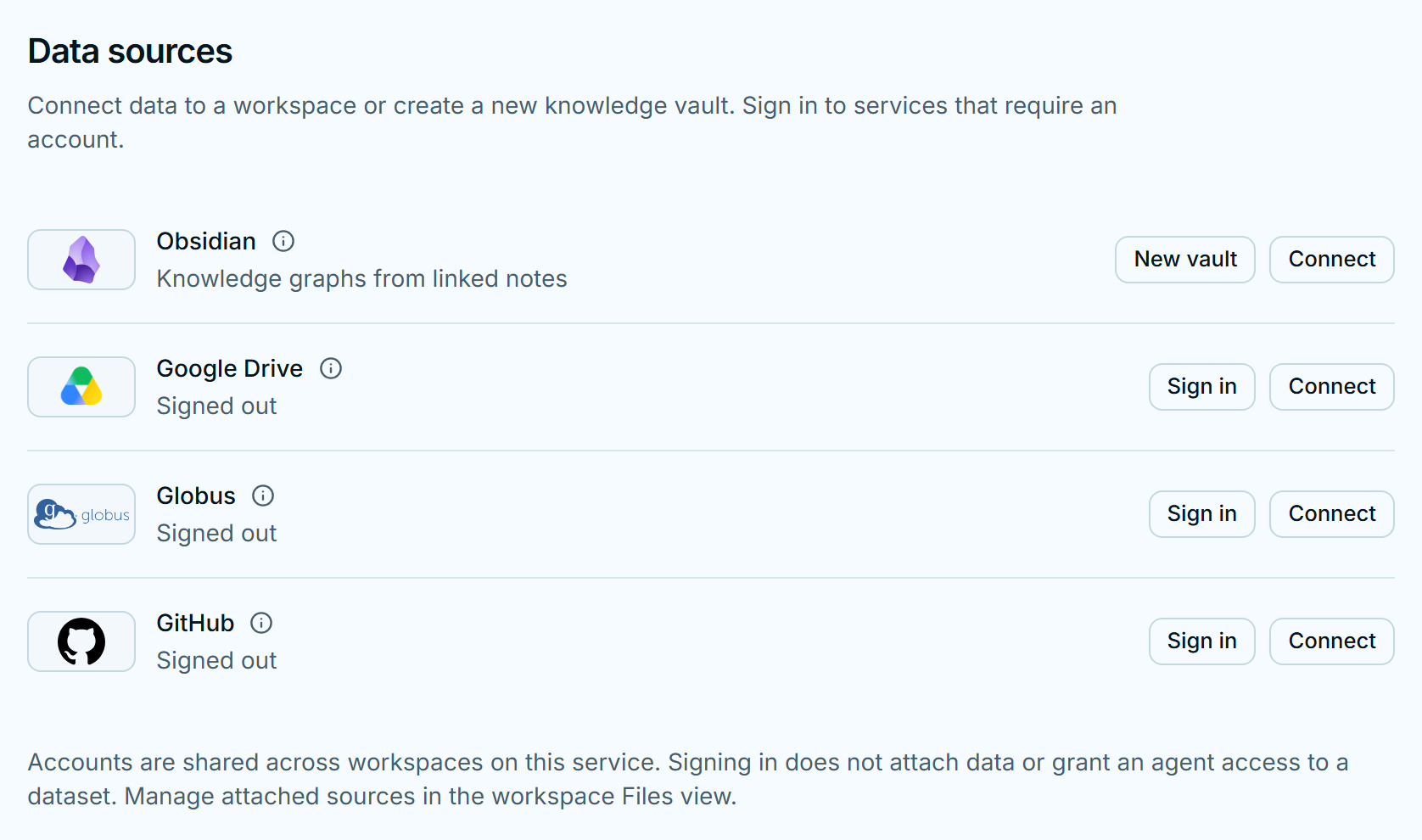
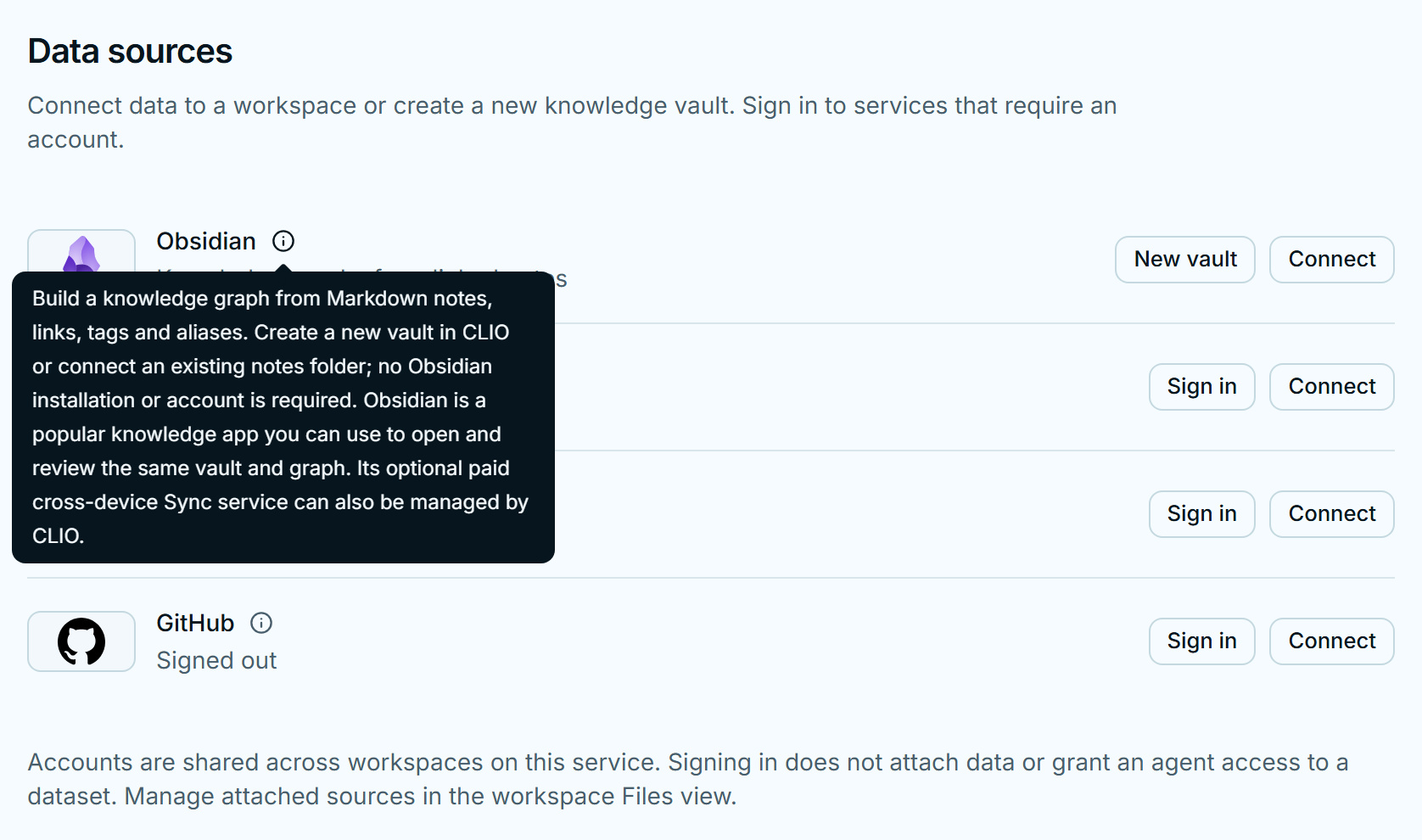
Each source has an info icon beside its name. Hover, focus it with the keyboard, or tap it for a brief explanation. Obsidian’s explanation starts with the knowledge graph; the optional app and paid Sync service come last.
Optional: sync a vault through your account
Section titled “Optional: sync a vault through your account”- Choose Connect for Obsidian, select a workspace if you started in Settings, and choose Sync from Obsidian in the connection form.
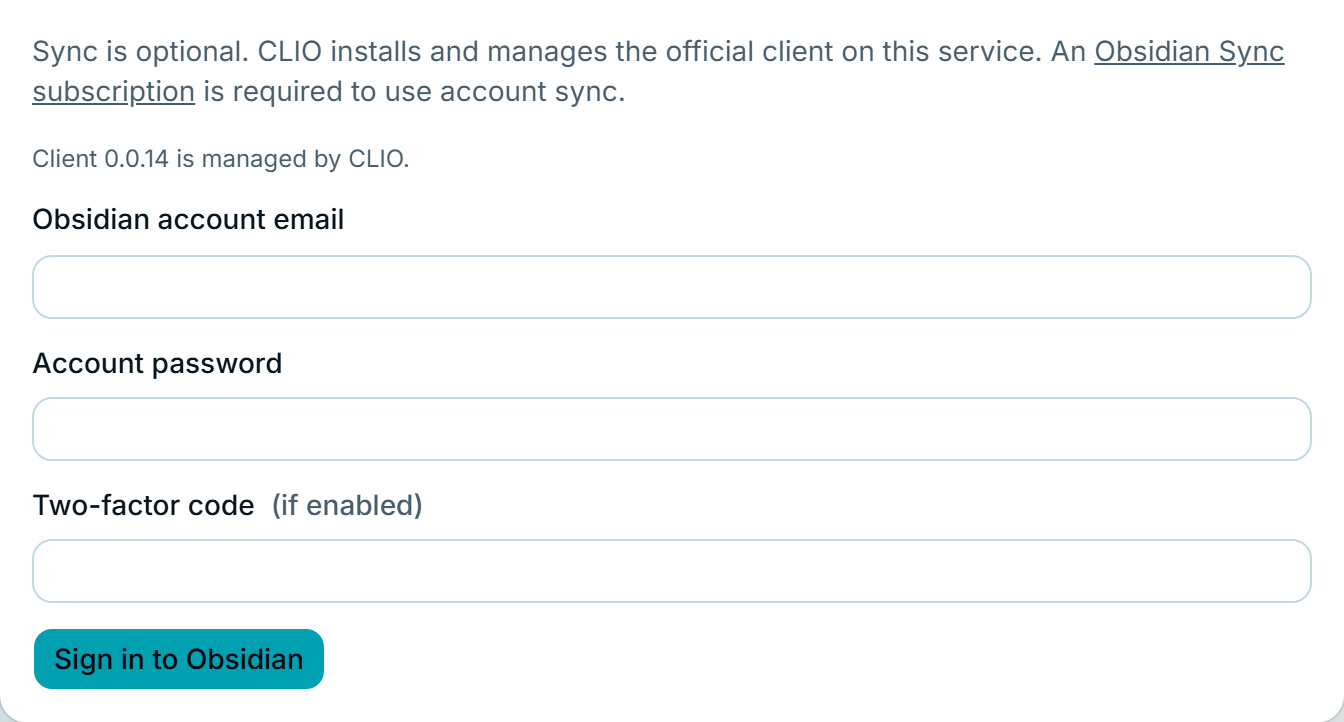
- Choose Install Sync client if needed. CLIO installs and verifies the official Obsidian Headless client in its managed environment and shows installation progress.
- Sign in with your Obsidian account and, if enabled, a two-factor code.
- Select a remote vault. Enter its encryption password if required.
- Choose the sync direction and whether CLIO may edit notes, then select Connect vault. CLIO configures and manages the local copy itself.
Download remote changes is the default; Sync changes both ways is a separate choice from allowing the agent to create or edit notes. The source tab offers Start sync and Stop sync and refreshes its index as changes arrive. Account credentials and vault encryption keys stay in the official client’s private storage, separate from the notes available to knowledge tools. Signing in alone does not attach a vault or grant the agent access to it.