
Memory and evidence
CLIO keeps a record of what happens in each run, so you can check an answer after the fact and build on earlier work. This page covers the record you see in the interface, and the memory the agent can search.
Session memory
Section titled “Session memory”An agent can search your past sessions and read their summaries, so a new question can start from earlier results instead of from nothing. Three memory tools do this:
memory_search_sessionsfinds matching excerpts.memory_read_session_summaryreads a session’s summary.memory_read_context_framereads a saved piece of context from a session.
By default a search covers the current session. Searching across other sessions in the workspace, or across all of them, is an explicit choice that follows the memory policy. Open Settings and choose Memory to search retained conversations yourself, see how full a session’s context is, and review when its history was compacted.
A blueprint grants memory tools to the experts that need them. An expert that does not list them cannot search memory, and a blueprint cannot override the memory policy.
The observability panel
Section titled “The observability panel”Open the observability panel with the panel button at the top right of a session. It has four tabs.
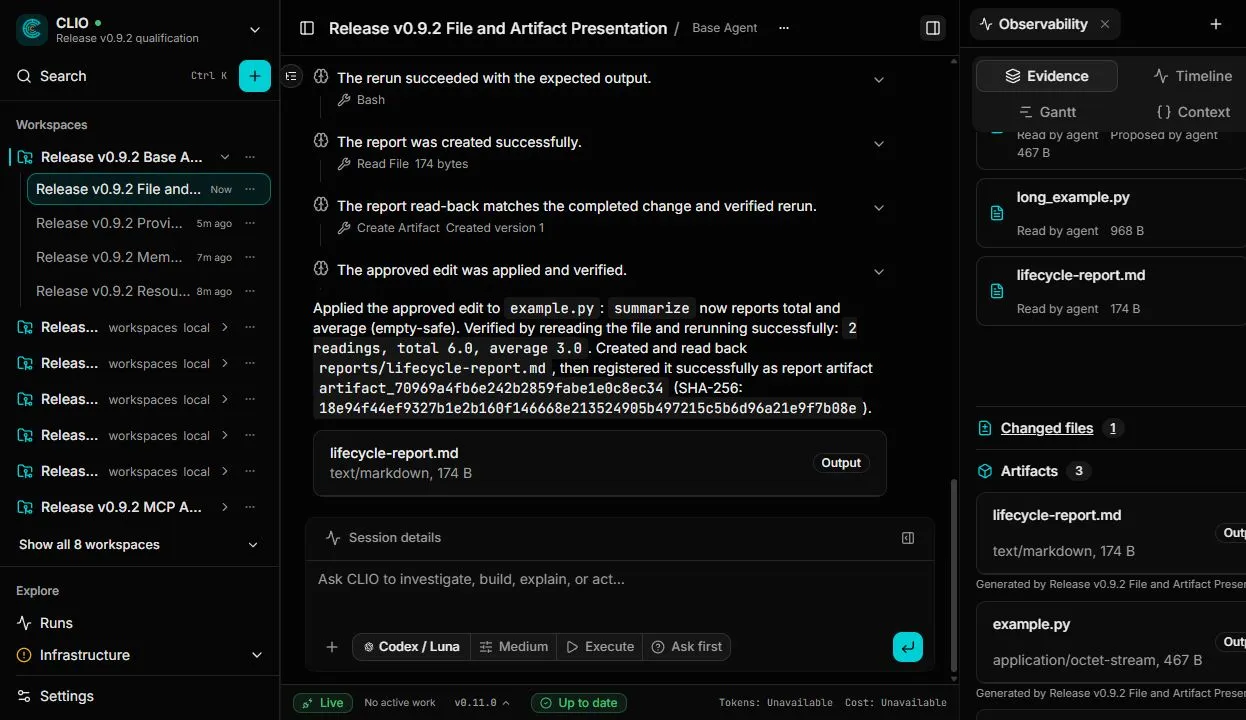
Evidence
Section titled “Evidence”Evidence lists what the run touched:
- Files the agent read, and files it proposed to change.
- Changed files, each with a diff.
- Artifacts the run created.
Timeline
Section titled “Timeline”The timeline lists every step in order: agent turns, tool calls with their arguments and outcomes, and the expert agents the main agent called on. Choose a step to jump to it in the transcript.
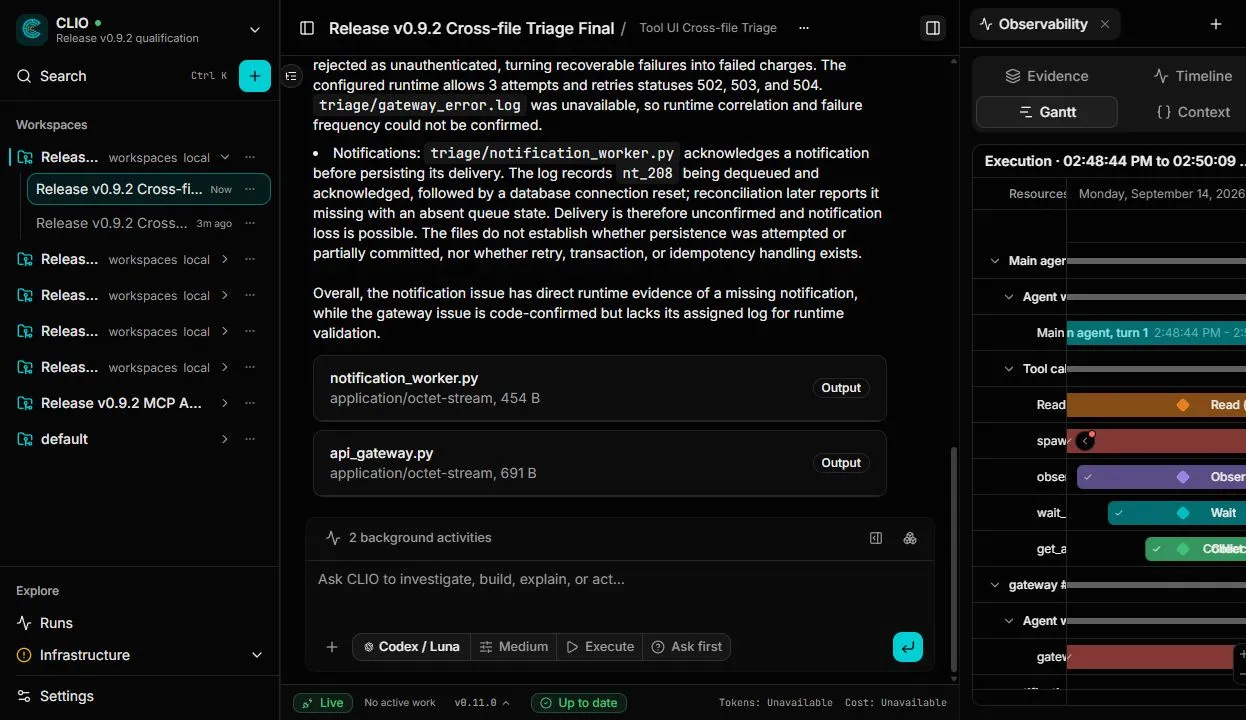
The Gantt tab lays the same run out against time. It shows the main agent, its child agents, and individual tool calls, so you can see what ran in parallel and where the time went. Work that continues in the background appears under “Background work”.
Context
Section titled “Context”The Context tab shows the context the agent is working with, for the agent you select.
Inspect additions and recovered context
Section titled “Inspect additions and recovered context”When CLIO adds instructions or recovers earlier conversation context, a receipt appears in the transcript. Choose Open exact details to inspect the recorded content in a separate window. You can also expand it in place with Show what it got.
Recovery uses the complete saved context records when available, including recorded tool inputs, results and loaded instructions. If only a transcript is available, the receipt identifies that reconstruction and its missing continuation state. A normal restart with retained context does not need a recovery receipt.
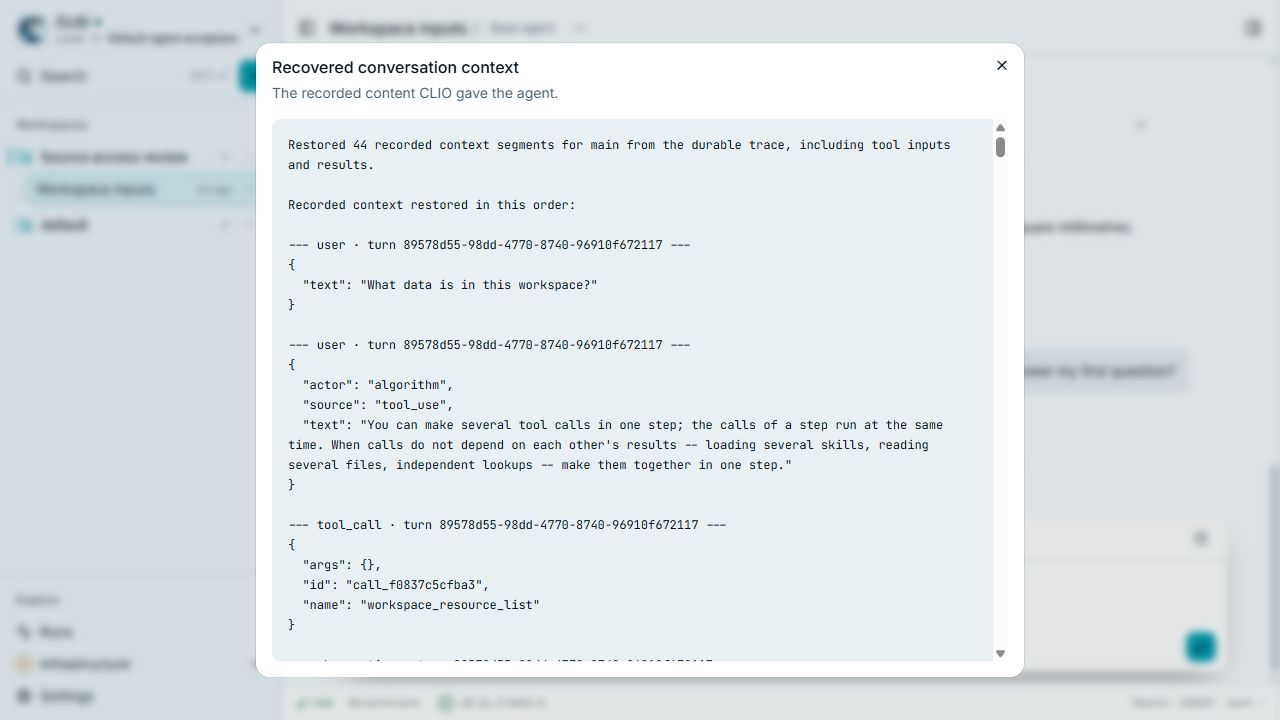
The receipt distinguishes a restored context from a reconstructed transcript. Enlarge screenshot.
Changed files and diffs
Section titled “Changed files and diffs”An agent proposes a file change as a diff. Nothing is written until you approve it. Review the diff, then choose Apply change or Reject change. A confirmation asks “Apply this file change?” before the write happens, and you can choose Keep reviewing instead.
Approving a diff is separate from the permission prompt for tools that write directly. See Permissions and sandbox.
Artifacts
Section titled “Artifacts”When a run produces a file you may want to keep, such as a report or a plot, it is registered as an artifact. Each artifact has:
- A content hash (SHA-256), so you can tell whether a file is the one the run produced.
- Versions. Changing the artifact creates a new version, and earlier versions are kept.
- Lineage, which shows the inputs and earlier artifacts it was derived from.
Open an artifact to see a preview and its Versions and Lineage tabs.
Charts, maps, and tables
Section titled “Charts, maps, and tables”Charts, maps, and tables render inside the session. When a series is too large to draw in full, the chart is downsampled and says so, for example “1,000 evenly sampled rows from 857,957 total”. Tables show how many rows are visible out of the total. You always see how much of the data the view represents.
Provenance export
Section titled “Provenance export”CLIO records provenance for every run. By default it keeps a durable local record in a file-based format (JSONL). To send the record to Flowcept as well, set the list of providers:
export CLIO_PROVENANCE_PROVIDERS=jsonl,flowceptOr in your configuration file:
provenance: agentic: providers: [jsonl, flowcept]The accepted provider names are jsonl and flowcept; file and native are accepted as other names for jsonl. Set the path of the JSONL record with CLIO_PROVENANCE_JSONL_PATH. To see which providers are active and whether each is healthy, use GET /v1/provenance/providers.